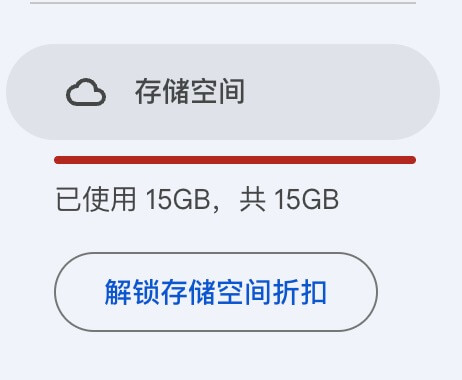
Google Photos only offers 15GB of free storage, after which you need to pay for a subscription. I decided to migrate my photos to a domestic cloud service—Quark Netdisk. Once the migration was complete, I needed to delete the photos from Google to free up space, especially since full storage can prevent Gmail from working properly. Unfortunately, Google doesn’t provide a “Delete All” button, and manual deletion is painfully slow. Here’s how I automated the process.
Why Delete?
As an Alibaba 88VIP member, I get 6TB of space on Quark Netdisk, so there’s no reason for me to pay for extra Google storage. Because Google’s 15GB limit is shared across Gmail, Google Drive, and Google Photos, my photo backup was starting to affect my ability to receive emails.

Steps to Automate Deletion
- Log in to Google Photos.
- Open the browser’s Developer Console (usually F12 or Right-click > Inspect > Console).
- Access this script: delete_photos.js and copy the entire content to your clipboard.
- This script acts as an automated timer to find and click the delete buttons for you.
- If you don’t want to delete everything but only a specific number of images, you can modify the
maxImageCountvariable in the script before running it.
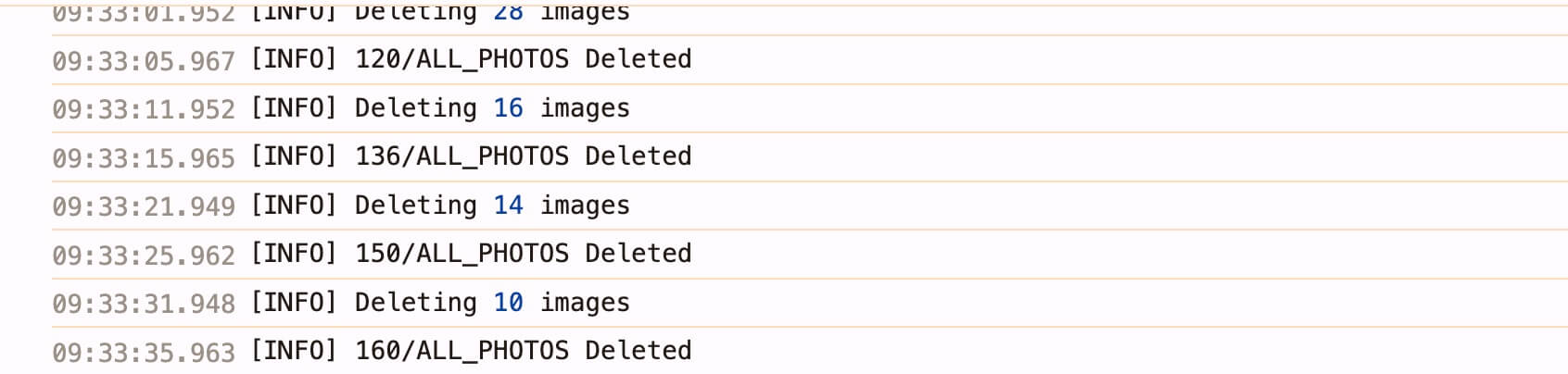
- Paste the script into the Console and press Enter. Be patient as it works through your library. The script will print its progress in the console.
Final Thoughts
- This method allows you to clear out your entire library. If you have a massive number of photos, you might need to leave the tab open for a while or refresh and re-run the script if it stalls.
- Remember that deleted photos go to the Trash first and will still take up space until the Trash is emptied or 60 days pass. You may want to manually empty the Trash if you need to free up Gmail space immediately.