Google recently launched a Chrome DevTools MCP (Model Context Protocol) server, which essentially gives AI models the ability to control parts of the Chrome browser. As someone who frequently translates articles and manages content, my workflow often involves translating text, opening a site, and pasting content. I hoped MCP could automate this. During the setup, I encountered some tricky configuration issues—here’s how I solved them.
Installing Chrome DevTools MCP
In theory, you only need to add the following to your Claude Desktop configuration file (found at ~/Library/Application Support/Claude/claude_desktop_config.json on macOS). However, note that MCP servers rely on Node.js, and this specific server requires Node 22 or higher.
{
  "mcpServers": {
    "chrome-devtools": {
      "command": "npx",
      "args": ["chrome-devtools-mcp@latest"]
    }
  }
}
Note: If the app doesn’t recognize the changes after you save the config file, you may need to restart the Claude Desktop app.
Solving Node.js Version Conflicts with NVM
If you use NVM (Node Version Manager) on your Mac, you might run into trouble. On my machine, I have multiple versions ranging from v16 to v22. Since chrome-devtools-mcp strictly requires Node 22+, and Claude might default to an older version (like my v16), it will fail to start.
To fix this, you have two choices:
- Uninstall all Node versions below 22 (not ideal for developers).
- Explicitly point Claude to the Node 22 binary and the global module path.
I chose the second option. First, install the package globally:
# Use Node 22 to install
nvm use 22
npm install -g chrome-devtools-mcp
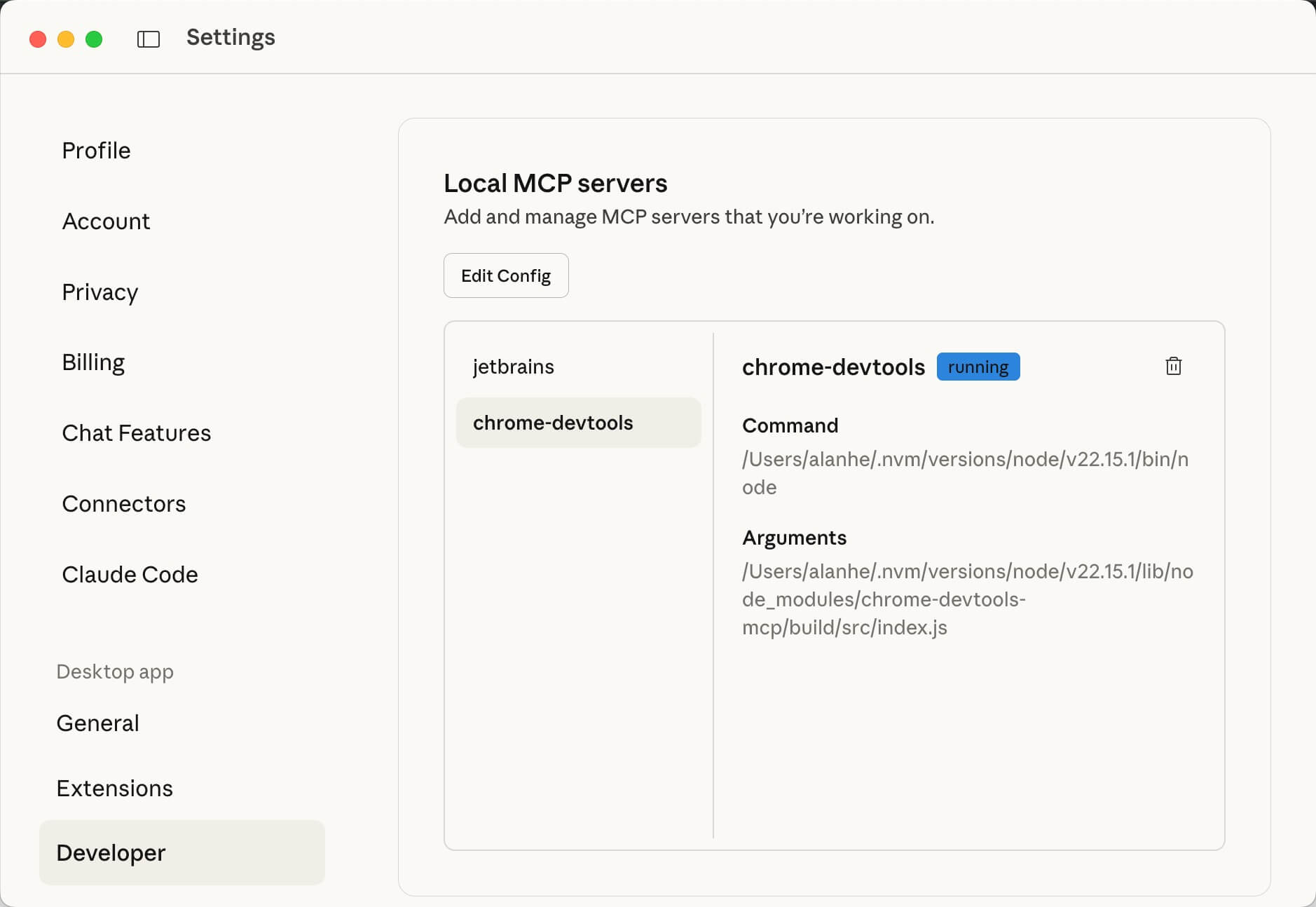
Then, update your claude_desktop_config.json with absolute paths:
{
  "mcpServers": {
    "chrome-devtools": {
      "command": "/Users/alanhe/.nvm/versions/node/v22.15.1/bin/node",
      "args": [
        "/Users/alanhe/.nvm/versions/node/v22.15.1/lib/node_modules/chrome-devtools-mcp/build/src/index.js"
      ]
    }
  }
}
This resolved the connection issues for me.
Using MCP within Claude Projects
I often use MCP within specialized Claude Projects. When writing your Project Instructions, be very explicit. Instruct the AI to follow strict sequential steps (e.g., “Step 1: Open the URL… Step 2: Extract content…”). This ensures the MCP triggers reliably; otherwise, the AI might skip the automation step.
Final Thoughts
- Practicality: While the functionality is impressive, it has limitations. For instance, when asking the AI to type content into a web input field, it currently simulates keypresses one by one (like a typewriter effect), which is agonizingly slow. For large amounts of text, manual pasting is still faster.
- Experimentation: Despite the speed issue, it’s a fascinating glimpse into the future of AI-browser interaction. It’s worth trying out just to see what’s possible.