At home, I primarily use a Mac mini. Since it lacks the trackpad found on MacBooks, switching between full-screen desktops can be cumbersome. I considered buying a USB-C Trackpad 4, but I realized that juggling a Trackpad, mechanical keyboard, and mouse might be inefficient and end up gathering dust. Today, during a conversation with a colleague, I learned that Logitech mice allow for custom button mapping to switch desktops. I quickly set it up and found that it works perfectly for my needs. Here’s a quick guide on how to do it.
Device Compatibility
I am currently using the M720, which supports button customization. If you have a Logitech mouse, you can check its specifications online or install the app, which will notify you if your device is supported.
Software
- Install the
Logi Options+software.
Logitech also has an older version called Logi Options, but it has been largely superseded by Logi Options+. I recommend installing the newer version. If it reports that your mouse is unsupported, you might try the older Logi Options.
You can also search for your device model on the official website; if it appears in the list, it is supported.
Setup Steps
- Open the
Logi Options+software. If your mouse is already connected to your computer, it will be recognized automatically. - Select your mouse device to enter the button customization interface.
- Choose the button you want to customize. I stuck with most of the defaults, as they are already quite well-optimized. The only change I made was setting the scroll wheel button to the
command + uphotkey, allowing me to quickly return to the top of a webpage.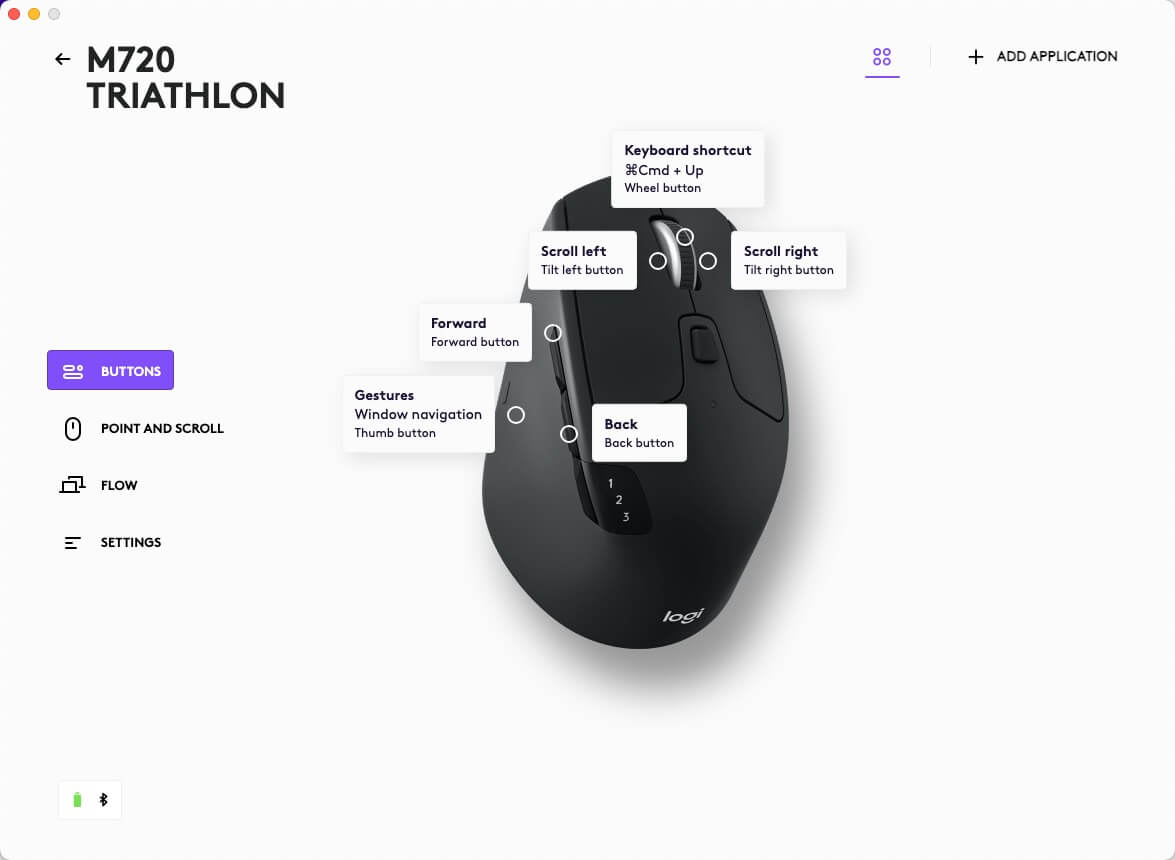
Logi Options+supports multiple languages. It defaults to the system language, but you can manually change it in the settings.
Note: Even default button assignments may require the Logi Options+ software to be installed and running to function correctly. Without the software, these shortcuts may not work.
Software Login
If you want to sync your settings across multiple devices, you can log in with a Logitech account. This will save your button configurations to the cloud, ensuring a consistent experience when switching between different machines.
Other Features
Logi Options+ also offers features like multi-device synchronization, Smart Actions, and AI integration. However, since my ecosystem is primarily Apple-based—which already handles sync well—and I use efficiency tools like Alfred, I haven’t found a need for these extra features yet.
Final Thoughts
After trying it out for a bit, here are my impressions:
- It takes some time to build the muscle memory.
- This setup effectively fulfills my need for quick desktop switching.